





















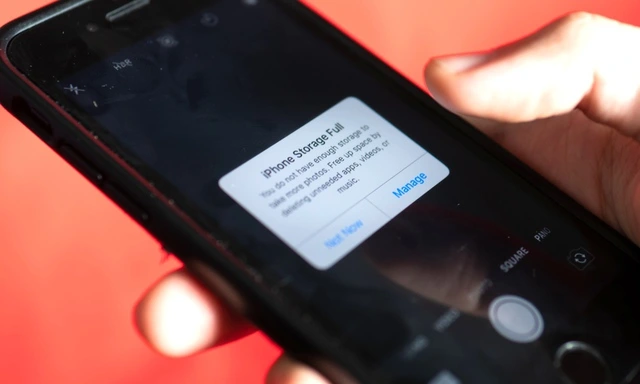
Imagine the frustration when an ‘iPhone Storage Full’ notification pops up just as you’re about to capture a precious moment. Upon checking, many users are baffled to discover that tens of gigabytes of storage aren’t consumed by photos or apps, but by a vague category labeled ‘System Data.’
The Nightmare Called ‘System Data’
Picture this: you’re on a holiday, ready to snap a family photo, but your iPhone refuses to cooperate due to insufficient storage. Instinctively, you navigate to Settings > General > iPhone Storage to free up space.
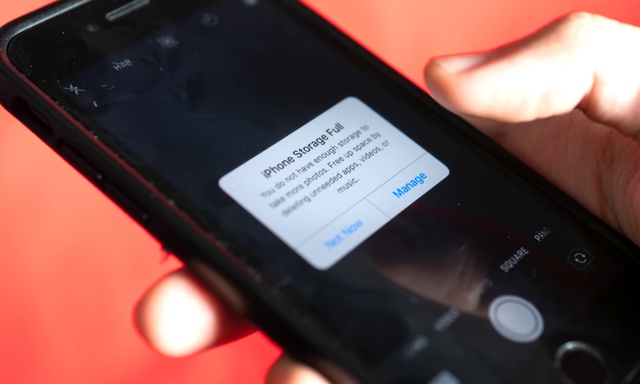
The dreaded ‘iPhone Storage Full’ message is a common sight.
IMAGE: SCREENSHOT FROM IDROP NEWS
Typically, the culprits are a massive photo library or hefty gaming apps. However, recently, many users have reported an unusual phenomenon where ‘System Data’ consumes an enormous amount of space. In one real-life case, this category devoured 80 GB out of a 256 GB device—a staggering 30% of the total storage. One Reddit user even shared a screenshot showing System Data occupying 128 GB.
What’s most frustrating is that Apple offers no way for users to delete this data.
What Does Apple Say About This Storage ‘Black Hole’?
According to iOS, System Data comprises cache, logs, and other resources actively used by the system. Apple asserts that this figure fluctuates based on system needs.
In a detailed explanation, an Apple representative stated, “This data includes short-lived temporary files that iOS actively uses to ensure smooth iPhone operation. When these files are no longer needed, the system automatically clears them, so continuous changes in System Data size are normal.”
In practice, this number varies dramatically. The aforementioned 80 GB of data shrank to 50 GB overnight without any intervention.
What Can iPhone Users Do?
Apple’s concise answer is that there’s nothing to do—and nothing users can do manually.
The company emphasizes that iOS is designed to self-optimize. It automatically deletes temporary files and cache when storage is nearly full, making room for user data. However, this automatic mechanism sometimes lags, causing temporary or illusory full storage alerts that confuse users.
While there’s no delete button for System Data, a small trick can expedite the process: close all apps.
If you notice unusually bloated System Data, swipe up from the bottom of the screen to open the app switcher and swipe to close all background apps. This signals to iOS that app-related processes are complete, prompting the system to prioritize clearing associated temporary files sooner.
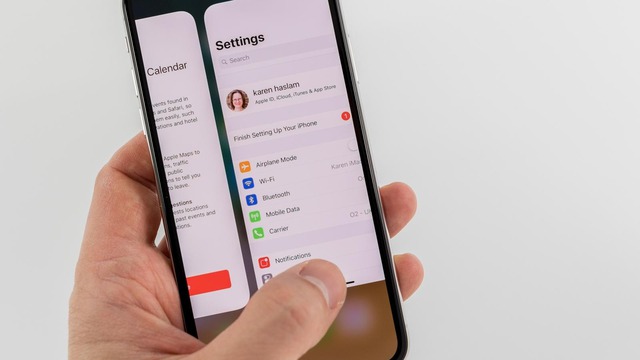
Closing background apps on an iPhone.
IMAGE: SCREENSHOT FROM MACWORLD
Until Apple introduces a genuine cache management tool, this remains the only solution for iPhone users grappling with System Data.
IPhone Keeps Restarting: Latest Causes and Fixes in 2024

Experiencing the frustrating issue of “iPhone constantly rebooting” can be a real headache for users. There are several different reasons that can cause this problem. Therefore, it is important to accurately identify the root cause in order to apply the most appropriate solution.
Check your iPhone system data with 2 super easy steps

Discover the simple yet effective method to check system data on your iPhone.