





















Trick 1: If your computer contains sensitive information, simply hold the Windows key and press L, the screen will instantly lock, no worries about data being viewed by others.
Trick 2: When searching for a document on the computer, most people go to My Computer, then click on the desired item, but computer experts just need to hold the Windows key and press E, the data management window will instantly open.
Trick 3: Playing games or viewing sensitive content and the boss appears. No time to click the icon to return to the main screen, what to do? Don’t worry, hold the Windows key and press D, the main screen will instantly appear.
Trick 4: Another little trick, holding the Windows key and pressing Tab will switch between program windows.
Trick 5: To display Windows recording functionality, press Windows+R, type “psr.exe” and select OK, recording can begin.
Trick 6: Want to know how to simultaneously adjust screen brightness, volume, open Wi-Fi, and view laptop battery levels? Or what devices are needed to connect a laptop to a TV? To know these functions, just press Windows+X, your requests can be fulfilled.
Trick 7: Press Windows+R, type “osk”, a virtual keyboard with similar functionality to a real keyboard appears.
Trick 8: Images or text too small, not clear? Try holding the Windows key and pressing “+” or “-”.
Trick 9: When opening multiple programs at once and wanting to switch between program windows, use Ctrl+Tab, to instantly close the current window press Ctrl+W.
Trick 10: Hold the Windows key then press Fn, press Home, you can open Properties without using the mouse to place the cursor on My Computer, right-click and select Properties.
Trick 11: Hold Shift + taskbar icon
Alt-Shift
Ctrl+S: Save
Ctrl+W: Close window
Ctrl+N: Open new folder
Ctrl+O: Open old folder
Ctrl+Z: Undo
Ctrl+F: Find
Ctrl+X: Cut
Ctrl+C: Copy
Ctrl+V: Paste
Ctrl+A: Select all
Ctrl+[: Reduce font size
Ctrl+]: Enlarge font size
Ctrl+B: Bold text
Ctrl+I: Italicize text
Ctrl+U: Underline text
Ctrl+Shift: Switch input language
Ctrl+Home: Move to page top
Ctrl+End: Move to page bottom
Ctrl+Esc: Show Start menu
Ctrl+Shift+ < or Ctrl+Shift+>: Reduce/enlarge font size
Ctrl+F5: Reload website
Ctrl+ folder shift: Copy folder
Ctrl+Backspace: Switch keyboard input method
When shifting folder hold Ctrl+Shift: Create folder shortcut
Alt+Backspace+C: Close window
Alt+Backspace+N: Minimize window
Alt+ Backspace +R: Restore window
Alt+ Backspace +X: Maximize window
Alt+ Backspace +M: Move window
Alt+ Backspace +S: Resize window
Alt+Tab: Switch working window
Alt+F: Open File menu
Alt+V: Open View menu
Alt+E: Open Edit menu
Alt+I: Open Insert menu
Alt+O: Open Organize menu
Alt+T: Open Tools menu
Alt+A: Open Favorites menu
Alt+W: Open Windows menu
Alt+H: Open Help menu
Alt+Enter: Check text properties
Alt+Double click text: Check text properties
Shift+ Backspace: Switch full screen mode
Shift + Delete: Permanently delete selected item without moving to trash.
Keyboard shortcuts used in Word
CTRL+O: Open document
CTRL+P: Print
CTRL+A: Select all
CTRL+D: Select font (select text first)
CTRL+G/H: Find/replace
CTRL+N: Open new document
CTRL+M : Left margin spacing (select text first)
CTRL+U: Sketch (select text first)
CTRL+B: Bold (select text first)
CTRL+I: Italicize (select text first)
CTRL+Q: Justify (select text first) or place cursor at end of paragraph and perform action.
CTRL+J: Justify both ends (action as above)
CTRL+E: Center align (action as above)
CTRL+R: Right align (action as above)
CTRL+K: Insert Hyperlink
Reopen closed tab
If you accidentally close a tab just press Ctrl + Shift + T to reopen the recently closed tab. On Mac, press Cmd + Shift + T.
Windows snap and multi-monitor feature
Pressing Windows key + arrow key will quickly shrink windows to one side of the screen. Additionally, pressing Shift + Windows key + arrow key will move the window to another monitor. While pressing Windows + P will allow quick setup of a second monitor or projector.
On macOS, utilize Mission Control to handle virtual desktops, switch between apps and achieve maximum speed. Though Mac doesn’t support multi-window mode, an app called Magnet priced at $0.99 performs this function and is highly rated.
Password protect files
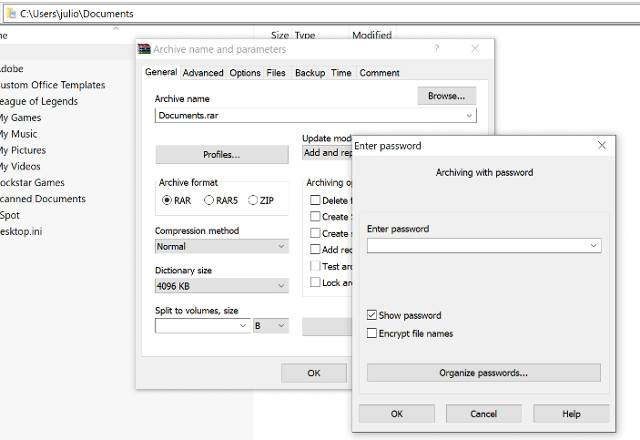
A simple way to prevent others from accessing important files is to encrypt them. You may already have 7-Zip, WinRAR, The Unarchiver (for Mac) or equivalent software, create a new archive, choose to encrypt content and password protect.

Undo anywhere
Did you know you can undo almost any action on the computer? Ctrl + Z is the “classic” shortcut and you surely know about it, however note that undo applies not only to typing text. If accidentally deleting or moving a file, you can press Ctrl + Z to return it to its original position (Ctrl + Y will redo any action you performed).
YouTube keyboard shortcuts
As you know using the spacebar to pause a YouTube video but you may not know using the K key also achieves the same result. Additionally you can use the J and L keys to rewind or fast forward 10 seconds, M to mute.
Take screenshots
Pressing print screen on the keyboard is the easiest way to take a screenshot. But Windows and macOS provide some other ways to take screenshots. You can use Monosnap (Mac, Windows), a simple, fast and multi-platform supported tool.

Windows Power User Menu
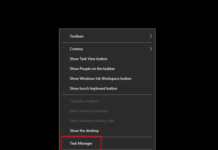
You can open the Windows Power User Menu by right-clicking the bottom left corner of the Start button on Windows 8 and 10 to open a context menu with shortcuts for power options, event viewer, device manager, etc. This menu can also be accessed by pressing Windows + X.
Easily extract images from Word files (.docx)
Change the file name from .docx to .zip and open the file. Images will be in one of these folders.
Find or delete large files wasting storage space
A handy tool called Space Sniffer can be used to easily find which files and folders are taking up the most space on the drive. From there, you can delete them and free up storage space. Other Windows options (free) include WinDirStat and TreeSize. On macOS you can use Finder or Siri to find large files without third-party apps.

Reduce startup programs
If the computer starts up slowly it may be because there are too many startup programs. It’s easy to reduce these programs and make the computer start up faster. However you should check programs removed at startup to avoid crashing the system.
Windows: Open Task Manager (Ctrl + Shift + Esc) and go to the startup tab to configure which programs you want to run with the system.
Windows 7 and earlier versions: Open Run (Windows key + R) and type msconfig to access a similar startup window.
macOS: Go to System Preferences > Users & Groups > select user and click the Login Items tab. You can remove or hide startup apps here.
Hidden Windows Control Panel folder
Windows provides a Control Panel containing all operating system settings, helping users easily tweak everything from desktop wallpaper to VPN settings. To enter this mode, create a new folder with the exact name (copy and paste): God Mode.{ED7BA470-8E54-465E-825C-99712043E01C}. The folder icon will change to the Control Panel icon and you can access and change all types of settings.

Text manipulation tricks
Paste plain text
When copying text from any source, it retains the original formatting. To paste this text as plain text, press Ctrl + Shift + V instead of Ctrl + V and the system will paste unformatted text. This also works on Mac: Cmd + Shift + V.
There are some other options besides copying and pasting in Notepad:
1) Ctrl + Alt + V will display the “paste special” dialog.
2) Ctrl + Spacebar will remove formatting in pasted text.
3) Download Puretext and choose a shortcut key to always paste plain text.
Delete entire word
Instead of deleting each letter, press Ctrl + Backspace to delete the entire word behind the cursor.
Move cursor to the beginning of the next or previous word
Moving the cursor manually while typing usually takes more time. To speed up the process, move the cursor using shortcut keys. To move it to the beginning of the previous word, use Ctrl + left arrow. To move it to the end of the next word, use Ctrl + right arrow. On macOS you can use the Option key. To select a word or paragraph, hold Shift + Ctrl + arrow key (up or down will select the entire text section).
Create superscript and subscript
If needing to create superscript and subscript, press Ctrl + = for subscript and Ctrl + Shift + = for superscript.
Use Windows Character Map to identify and create foreign symbols
Find Character Map in the Start menu and you’ll find a utility that allows copying any character and even provides an Alt + numeric keypad code. For example: the euro symbol (€) can be created with Alt + 0128.
Keyboard shortcuts
Open Task Manager directly
To open Task Manager directly press Ctrl + Shift + Esc.
Use Spotlight
Windows’ built-in search is not useless, but it’s certainly not reliable and slow. However Spotlight on macOS is an “intelligent” tool. Press Cmd + spacebar to open an app by just typing the first 2-3 letters of the app name, it will search files or even do calculations.

Interrupt all processes
Ctrl + Alt + Delete is used as a common computer shortcut and almost all users are familiar with it. Importantly, it can also interrupt all processes, including system crashing processes. On macOS, you can also “summon” the Force Quit dialog using Cmd + Shift + Esc.
Switch between open windows
Pressing Alt + Tab allows moving through open windows (Alt + Shift + Tab will move in reverse). On macOS use the shortcut Cmd + Tab.
Launch programs using hotkeys
Right-click any app shortcut in Windows, click Properties and in the Shortcut tab, you’ll see a “shortcut key” field to create a preferred shortcut key combination to launch the program. Note, if clicking the “advanced” option in the Shortcut tab, you can set it to run as administrator, especially useful for creating an elevated Command Prompt shortcut.

Close current program
Pressing Alt + F4 will close running programs. This is very useful as it saves time.
Minimize all windows
Sometimes you use a series of programs and want to minimize all to show the desktop. Simply press Windows + D to save time minimizing each window. Note that Windows + M provides similar functionality but doesn’t restore, so Windows + D is the more convenient approach. On macOS, use Mission Control to handle virtual desktops, switch between apps.
Use menu key on keyboard for right-click

Not all keyboards have a menu key (as illustrated) but many keyboards have this key. This button will replace the right-click action.
Close current window/tab
Click the X button to close the current window? No need to waste time like that, just press Ctrl + W and the current window will close.
Open system information window
This process is much faster than the traditional way, just press Windows + Pause Break and the system information panel will appear.

Use keyboard to launch programs on Windows Taskbar
Pressing the Windows key + number corresponding to the program’s position on the Taskbar is a quick way to open them. For example, if Chrome is the second icon on the Taskbar, press Windows key + 2 to open it.
Use keyboard to navigate system tray icons
Pressing Windows + B will automatically select the system tray area, where you can use the arrow keys to select a program and press Enter to open.
Enable copy and paste in Command Prompt
Right-click Command Prompt shortcut > Properties > Options > and check the “QuickEdit mode” box. Now you can select text with left-click, copy with Enter and paste with right-click.
Web browser tips and tricks
Quickly move to address bar
There are several ways to move to the address bar from anywhere in the browser. Pressing Ctrl + L, F6 and Alt + D all achieve this goal.
Automatically add www. and .com to a URL
You can save time typing www. and .com in a URL simply by pressing Ctrl + Enter after typing the website name. If .net then press Ctrl + Shift + Enter.

Switch between open tabs
Pressing Ctrl + Tab will switch between browser tabs (Ctrl + Shift + Tab to move back). This can be much faster than moving the mouse and clicking a tab. Ctrl + number on the numeric keypad (1, 2, 3, 4, n..) will also take you to the tab in that order. Ctrl + 9 takes you to the last tab, even if more than 9 tabs.
Scroll page using spacebar
Pressing the spacebar on a webpage will scroll down and pressing Shift + spacebar will move up.
Instant image search (Chrome only)
If you hold the “S” key and right-click an image, it will open image search on a new tab.
Use private browsing
Using without cookies and history is obvious for certain activities. Pressing Ctrl + Shift + N will open incognito mode in Chrome, Ctrl + Shift + P in Firefox and Internet Explorer.

Bookmark icon on toolbar
You can remove bookmark names leaving only icons to take up less toolbar space. In Chrome: right-click bookmark on toolbar > Edit > delete name and click Save.
Use scroll wheel
Pressing the scroll wheel on a link will automatically open it in a new tab/window. Also if pressing the scroll wheel on a tab, it will close that tab.
Quickly copy link
Right-click a link as normal but press the E key on the keyboard to copy the link.
Edit content on web
Open console interface in Chrome or Firefox (right-click and select Inspect). In the console enter document.designMode = “on” to enable editing any text on screen.
Zoom in/out on webpage
Use the browser’s magnifying glass icon to adjust webpage view for comfort. Ctrl/Cmd and +/- (plus/minus) to zoom in/out. To reset default zoom level, use Ctrl + 0.
File management tricks
Quickly rename a file
Right-clicking and selecting Rename is not very efficient, instead press F2 while selecting a file. To change the name of another file, press Tab without unselecting the current file. On Mac, press Enter to rename while Cmd + O is used to open the file.
Back up important files to the cloud
If working on an important project, ensure it’s not only saved locally. Services like Dropbox, Google Drive or any popular cloud storage solution will be a useful measure. Of course, you can also throw files on an external hard drive.

Sequentially rename files in Windows or Mac
You don’t actually need to download any program to perform batch file renaming. Instead, select all files to be changed, right-click the first file in the list, select Rename (or use F2) and enter a name. This will automatically change all other files with the same original name to: (1), (2), etc.
On Mac, perform similarly, select files, then right-click and select an option for batch renaming.

Select multiple files using keyboard
To select multiple files using the keyboard, press Shift + down/up arrow to select a file below or above or Shift + Page Down to select a large group of files at once. Ctrl + A will select everything.
Security tricks
Lock computer if worried about friends using your computer to post everything on your Facebook or Twitter? Windows + L will instantly lock your system, requiring a password (if set) to log back in.
On macOS use Cmd + Option + Power to log out. In the latest macOS version (High Sierra) a quicker option to just lock the screen has been added, using the shortcut Cmd + Ctrl + Q.

Scan suspicious files with VirusTotal
If worried about an infected file, you can upload it to VirusTotal for scanning by dozens of cloud antivirus tools. Often someone has already uploaded the same file, you can view results without waiting.
See who’s logged into your router
Software like Wireless Network Watcher alerts you when someone accesses your router. You can also do this by logging into the router (common router IP addresses) and checking the list of wireless clients, displaying device names, IP and assigned MAC addresses.
Permanently delete already deleted data so software like Recuva can’t recover files/folders
Open Command Prompt and enter cipher /w:C: to delete files already deleted from drive C: (replace letter for other drives or folders).
Read installation programs
Most programs can install toolbars and other unwanted software during installation. Spend a few seconds reading each step to ensure not agreeing to install something besides the desired program.
Run programs on an infected computer
Malware can prevent the computer from running certain programs. Changing the .exe file name often overrides this. If that doesn’t work, change the file extension to .com and the program may still run.
Other third-party app tricks
Steam: Move games to another drive or partition
Software like Steam Mover is required for this process. Steam now provides the ability to store games on multiple drives. Go to Steam > Settings > Downloads > Steam Library Folders, create a Steam library folder then right-click an installed game in the Steam library Properties > Local Files > Move install folder… > Choose directory > Move folder.

Repeat last command in Excel
Press F4 in Excel to repeat the last command. If selecting a cell and highlighting it yellow, you can highlight any other selected cells yellow by pressing F4.
Use Windows problem recording tool
This handy tool automatically records any mouse clicks and takes screenshots. If needing computer technical support, go to the Start menu and search for “steps recorder”. Use the tool and when finished, you can send this neatly organized information to the person helping solve your problem.
VLC: Fix unsynchronized audio and subtitles
In VLC, if audio is unsynchronized with video or subtitles, there’s an easy way to troubleshoot. Simply press J or K to move audio forward or backward. Similarly, to synchronize subtitles press H or G.

Expand text to full page width in Microsoft Word
Go to View > Zoom > and select Text Width > OK.
Essential Computer Hacks to Optimize Your PC Performance
If you’re a frequent computer user, make sure to take note of these essential tips and tricks to enhance your experience and boost productivity. From keyboard shortcuts to software recommendations, these insights will help you navigate your digital world with ease and efficiency. Stay tuned for valuable advice that every tech-savvy individual should know.
Disabling Gatekeeper and System Integrity Protection (SIP) on Your MacBook: A Step-by-Step Guide
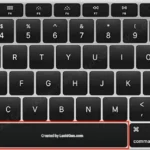
Unleash the full potential of your Mac with a deeper understanding of its security pillars. Gatekeeper and System Integrity Protection (SIP) stand as Apple’s formidable guardians, fortifying your device against unauthorized access and malicious threats. These robust security features work in tandem, ensuring your Mac remains a bastion of safety and privacy in an increasingly connected world.
How to Add Leading Zeros to Numbers and Text in Excel
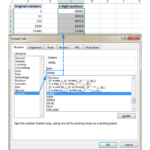
If you use Excel not just for calculations but also for data analysis, reporting, and automation, you’re unlocking its full potential. Excel is more than a spreadsheet tool—it’s a powerful resource for streamlining workflows, gaining insights, and making data-driven decisions. Whether you’re managing projects, tracking finances, or visualizing trends, mastering Excel can transform the way you work, saving time and enhancing productivity.
What is a CSV File? Understanding the Difference Between CSV and Excel

“The ability to receive data in CSV format is undoubtedly a boon, and it’s safe to say that this humble file format is a cornerstone of modern data exchange. With its ubiquitous presence, the CSV file has become the unsung hero of seamless data transfer, offering a versatile and efficient way to share information across various platforms and applications.”
The Top 5 Power-Hungry Appliances: AC Only Ranks 2nd, the Real Energy Guzzler Might Surprise You!

“There’s no denying that air conditioners are among the most power-hungry appliances in our homes. During sweltering summers, running the AC all day long can result in a hefty bill. But wait, there’s an even bigger electricity guzzler lurking in our midst, a device that surpasses the power consumption of even our trusty air conditioners. Prepare to be shocked as we unveil the mysterious energy hog hiding in plain sight.”