
Dealing with a poorly performing iPhone battery can be frustrating, and replacing it can be costly. Fortunately, there are several solutions to extend your iPhone’s battery life, and here are 13 effective ways to achieve that.
Here’s how Apple defines battery lifespan and battery life for the iPhone:
“Battery life” refers to the amount of time your device runs before it needs to be recharged.
“Battery lifespan” is the duration your battery lasts until it needs replacement.

In Settings > Battery, you can monitor each app’s battery usage and your device’s battery health. Key settings to optimize include Background Activity (Settings > General > Background App Refresh), Location and Background Location (Settings > Privacy > Location Services), Home & Lock Screen notifications (Settings > Notifications), and minimizing No Mobile Coverage and Low Signal searches.
If you own a Mac, use the CoconutBattery app to check your iPhone’s battery health anytime. If it’s below 80%, visit 126.vn for affordable battery replacements with a 12-month warranty.

Additionally, enable Airplane Mode when the battery is low, check Maximum Capacity to monitor battery health, and activate Optimized Battery Charging to reduce aging.
Update Your Software
Regularly updating your iPhone to the latest software ensures better security and fixes potential bugs or malware. Updates often include advanced energy-saving technologies, reducing battery drain.
To check for updates, go to Settings > General > Software Update. Always update via Wi-Fi and keep your device plugged in to ensure a smooth process and save mobile data.
Optimize Settings
Adjusting screen brightness and Wi-Fi usage can significantly improve battery life. Lower screen brightness or enable Auto-Brightness via Settings > Accessibility > Display & Text Size.

Using mobile data consumes more power than Wi-Fi, so connect to Wi-Fi whenever possible to conserve energy.
Enable Optimized Battery Charging
Introduced in iOS 13, Optimized Battery Charging learns your charging habits and delays full charging until needed. Enable it via Settings > Battery > Battery Health.
This feature ensures your iPhone charges to 80% and completes the remaining 20% just before you use it, reducing battery aging.
Activate Low Power Mode
Low Power Mode, available since iOS 9, extends battery life when it drops to 20% or lower. Activate it via Settings > Battery or customize its access in Control Center (Settings > Control Center).
Charge via a Powered-On Computer
Apple recommends charging your iPhone via a powered-on and plugged-in computer. Charging via a turned-off or sleeping computer may drain your battery.
Use Auto-Brightness
Enable Auto-Brightness via Settings > General > Accessibility > Display Accommodations. This adjusts screen brightness based on your environment, saving energy indoors.
Reduce Auto-Lock Time
Set Auto-Lock to 30 seconds via Settings > Display & Brightness > Auto-Lock to prevent unnecessary battery drain when the screen is idle.
Use Wi-Fi Whenever Possible
Wi-Fi consumes less power than mobile data. Enable Wi-Fi via Control Center to save battery life.
Use Low Power Mode
iOS prompts Low Power Mode at 20% battery. Manually activate it after a full charge to reduce background processes and extend battery life.
This mode minimizes battery degradation by avoiding constant full charging.
Avoid Extreme Temperatures
iPhones operate best between 32°F and 95°F (0°C and 35°C). Extreme cold or heat can accelerate battery degradation.
Long-Term iPhone Storage Tips
For long-term storage, charge your iPhone to 50%. Avoid storing it fully charged or depleted, as both can damage the battery.
iPhone Charging Tips
Lithium-ion batteries degrade with heat and overcharging. Remove thick cases during charging, as they trap heat. Avoid using battery cases for extended periods.

With over 15 years of experience in web design and development, I’ve helped hundreds of businesses create sustainable and profitable websites. My comprehensive strategies ensure long-term growth and success.
The Ultimate Guide to Battery Management: Stop Your Phone from Draining Overnight!
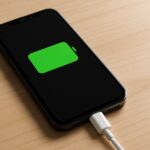
The Ultimate Guide to Longer-Lasting Phone Battery Life: Supercharge Your Device’s Performance!
What is the Optimal Battery Percentage to Begin Charging Your Phone to Maintain its Health?

Here are some essential battery charging principles to help you better protect your devices.
“The Great Charging Debate: Phone or Outlet First?”
Although we use our phones almost every day, many of us don’t know the correct way to charge them.
The Ultimate Guide to Battery Charging: Smart Tips to Prolong Your Device’s Lifespan

Here are some tips to charge your device faster without damaging the battery or device.
The Biggest Charging Mistake: Why 90% of People Are Doing It Wrong and Killing Their Battery Health
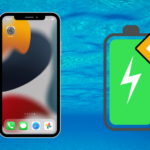
“Unleash the power of these eight golden rules for charging your phone, and you’ll be rewarded with a long-lasting battery life that defies the test of time. These rules are the key to maintaining the health of your phone’s battery and ensuring it remains in tip-top shape.”